
This page will show you how you can bulk import contacts via a .csv file
Follow these easy steps to bulk import your contacts
Step 1: Log in to your Inboxroad account
Start by logging in to your Inboxroad account. This can be done by visiting the Inboxroad website and entering your login credentials.
Step 2: Navigate to your “Contacts” tab and choose “My lists”
Once you enter the “My Lists” tab, you will be able to see all your existing lists and create new ones. To create a new list, click the “New List” button in the top right corner.

Step 3: Create a new list and open it
You can choose a name for the list according to your preference.
Step 4: Click on “New contact” and “Import CSV”
You will be able to import a CSV file once you click on “Import CSV“.

Step 5: Add your CSV file from the device
To add a CSV file, simply click on “Browse” or drag and drop your file directly into the window.

When done, click on “Continue“.
Step 6: Check or add field names
Important: when importing, ensure that the “Status’” field values – either “subscribed” or “unsubscribed” – are written in lowercase.
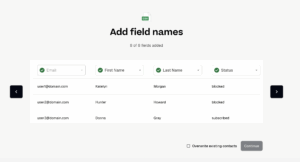
Please note that the “Overwrite existing contacts” button will update or overwrite contacts that have already been imported.
Additionally, this button can also be used to bulk unsubscribe contacts. To do so, change the “Subscribed” status to “Unsubscribed” in the .csv file.
Step 7: Add missing field names or do not import them at all
If some of the fields are not automatically recognized, you can manually select their names from the dropdown menu.


Step 8: Click on “Continue” button
Import complete! You can now check all your contacts in the list.
Contact us if your need some help
If you encounter any issues or have questions about adding or editing your contact list, please don’t hesitate to contact Inboxroad support for assistance or mail us at contact@inboxroad.com. We’re here to help you every step of the way!