
Inboxroad – Pipedrive Integration Guide
1. Introduction
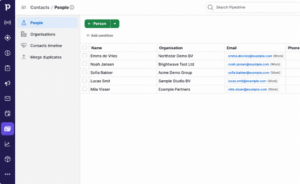
The Inboxroad + Pipedrive integration allows you to import people and organizations from Pipedrive into your Inboxroad account for email-sending purposes.
Inboxroad connects directly to Pipedrive and retrieves your contact data in real time. This allows you to keep Pipedrive as your central contact-management system while using Inboxroad to create segments, build campaigns, and send emails.
2. How the Integration Works
- Inboxroad connects to your Pipedrive account and imports people and organizations
- Pipedrive remains the source of your contact data
- You can import all available contacts or use a Pipedrive custom field to determine which contacts should be imported
- Pipedrive custom fields are imported into Inboxroad and can be used for filtering, segmentation, and personalization
- Contact data can be synchronized with Inboxroad in real time
- Subscription and unsubscription statuses are managed in Inboxroad
3. Requirements
To use this integration, make sure you have:
- An active Pipedrive account
- People and/or organizations available in Pipedrive
- A functional Inboxroad account in which you can create contact lists
- If you want to import only selected contacts: a suitable custom field in Pipedrive
Important: Before importing contacts, make sure you have the required permission to send marketing emails to them.
4. Connecting Pipedrive to Inboxroad
- Log in to your Inboxroad account.
- Open the integrations section and select Pipedrive.
- Click the button to connect your Pipedrive account.
- Log in to Pipedrive if requested and authorize Inboxroad to access the required contact data.
- Return to Inboxroad and configure which contacts you want to import.

5. Selecting Contacts for Import
You can configure the integration to import:
- All available people and organizations from Pipedrive; or
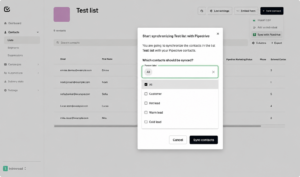
- Only records that match the value of a selected Pipedrive custom field
Using a custom field gives you more control over which contacts become available in Inboxroad. For example, you can create a field in Pipedrive that identifies contacts who may receive marketing emails or contacts who belong to a specific audience.
After selecting the preferred import option, save the integration settings and start the synchronization.
Important: A custom field can help you select contacts, but it remains your responsibility to ensure that the imported contacts may legally receive your emails.
6. Updating Your Contacts
Pipedrive remains the source of your contact information. To update contact data in Inboxroad:
- Make changes to people, organizations, or custom fields inside Pipedrive
- The integration can make these updates available in Inboxroad in real time
- Use the synchronization option in Inboxroad whenever a manual synchronization control is available in your account
7. Custom Fields and Data Structure
Pipedrive custom fields are imported into Inboxroad as fields.
You can use these fields to:
- Filter imported contacts
- Create targeted segments
- Personalize email content
- Select the right audience for a campaign
The exact fields available in Inboxroad depend on the data and custom fields configured in your Pipedrive account.
8. Subscription Management
Subscription statuses are managed inside Inboxroad.
- Only subscribed contacts can participate in future campaigns
- When a recipient unsubscribes, Inboxroad updates the contact’s status in Inboxroad
- Subscription and unsubscription changes are not written back to Pipedrive
Because Pipedrive does not receive these status updates, always use the current subscription status in Inboxroad when creating or reviewing a campaign audience.


