
Connect Inboxroad to Mailwizz with a webhook
In this guide, you will learn how to connect Inboxroad to your Mailwizz account using our webhook in a few easy steps. Make sure you have your Inboxroad setup document at hand. If you have multiple sending domains you need to follow these steps for each of them separately.
Step-by-step video explainer
Step 1: Set your Mailwizz to auto update
As this is a recent integration within Mailwizz, we are constantly improving our performance, so make sure you that your Mailwizz software is always on the latest version to prevent compatibility issues. Therefore it’s required to set auto update to ‘on’ to avoid any disruptions.
This can be done here: Backend dashboard > Settings > Common > Application auto updates: Yes.
Step 2: Configure the delivery server
Using the backend dashboard you can now begin to set up a connection with Inboxroad.
From the backend dashboard click on ‘Delivery servers’ under ‘Servers’.

On the next screen click on “Create new server” and select ‘SMTP Inboxroad’.

On the next screen fill in the details, you have received in your Inboxroad setup document. What is most important:
The ‘From email’ should be the same domain you have used to authenticate with Inboxroad.
For ‘Reply-To email’, it is recommended to use the same domain, but you can choose a different one. If the ‘Reply-To email’ domain drastically differs from the ‘From email’ domain, it can raise red flags and lower deliverability.
Add ‘Port:’ 587 and select STARTTLS in the ‘Protocol’ dropdown.
Add the ‘Return Path’ mailbox as found in your Inboxroad setup document.
In the end, assign it to the required customer and click on ‘Save Changes’.

Step 3: Set up the webhook
To enable automatic bounce and complaint handling, you’ll need to set up a webhook inside Inboxroad.
1.Go to the Webhooks section in your Inboxroad account and click Create new webhook
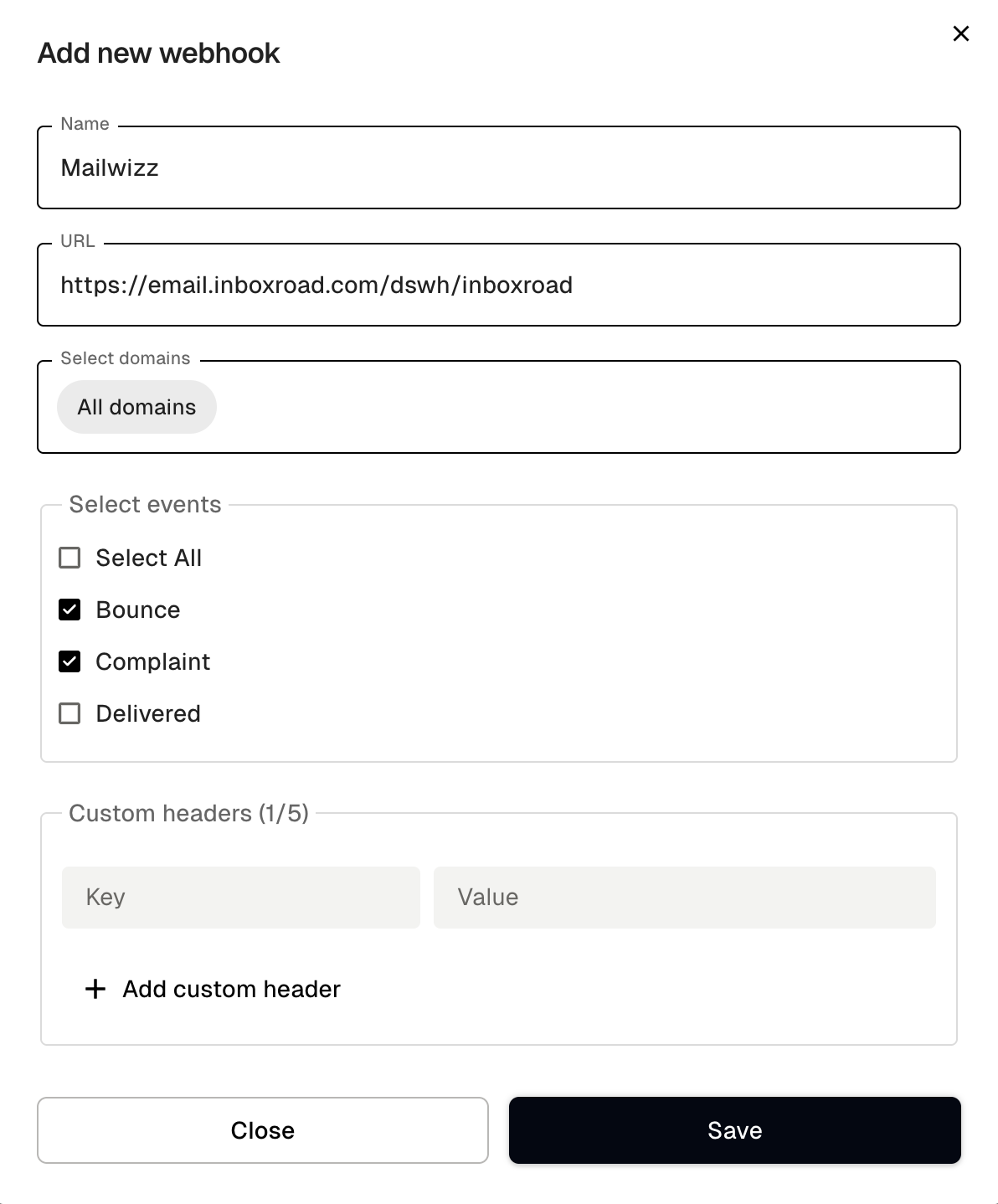
2.Enter a name for the webhook (e.g. Mailwizz).
3.Paste the URL from Mailwizz:
-
-
-
In Mailwizz, open the Inboxroad delivery server page.
-
Click the info button in the top-right corner (see screenshot below).
-
Copy the webhook URL provided there and paste it into the URL field in Inboxroad.
-
-

4.Choose whether the webhook should apply to all sending domains or only specific ones.
5.Select the events you want to receive: ensure that you choose ‘Bounces’ and ‘Complaints’.
6.Select ‘I want to use first version of SMTP payload’.

7.Save the webhook.
Your bounces and complaints will now be automatically processed via the webhook connection.
Step 4: Verify connection
Mailwizz will ask for an email address they can send a verification key to. The email will look something like the below.
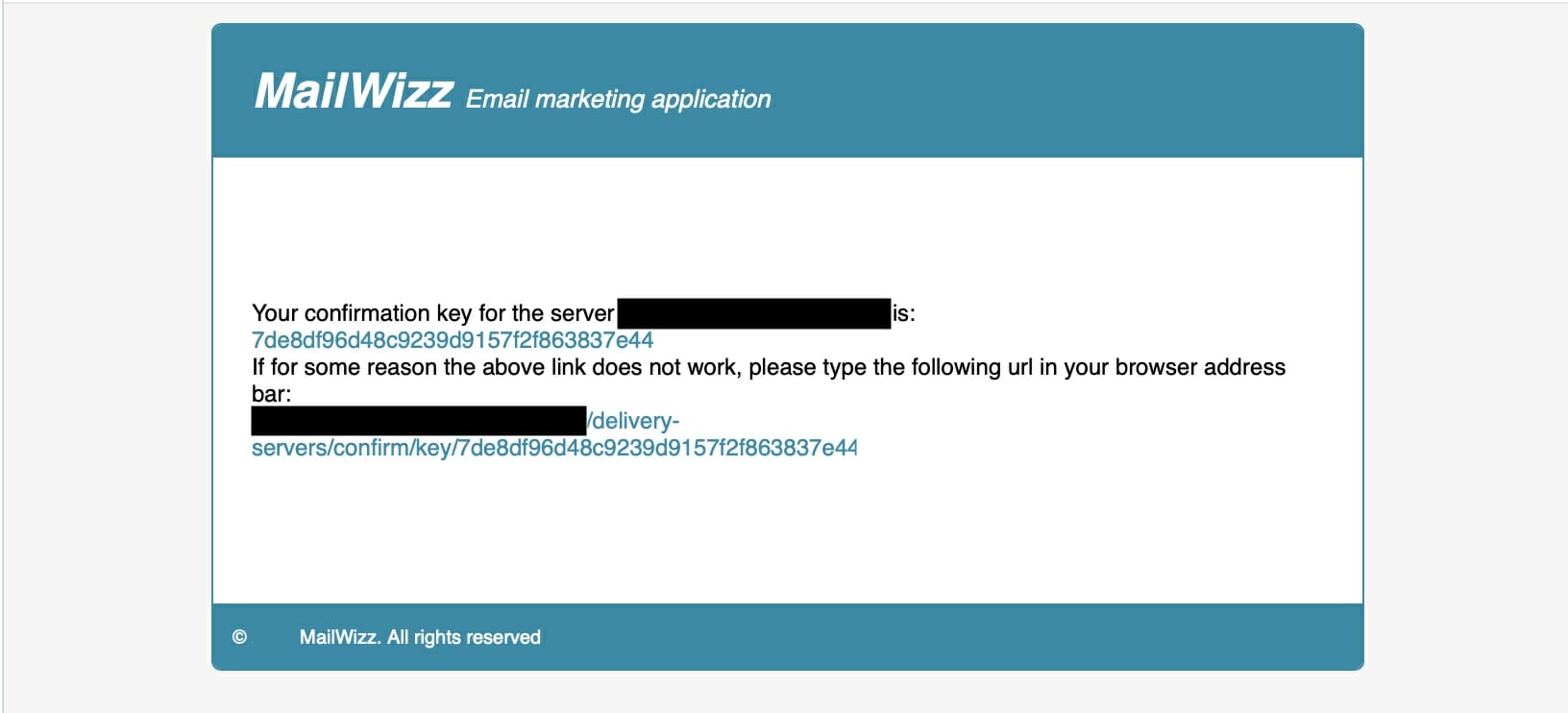
Click on the link given here and your new delivery server is active and ready for use.
Step 5: Select the new mailserver in your campaign
Finally, you have to make sure that you are using the new mailserver while sending your campaign.
To be able to do this go to: Backend dashboard > Settings > Customers > Servers > Can select delivery servers for campaigns: Yes.
Then when creating a campaign you can choose ‘show more options’ once you are in step 2 ‘Setup’.
Here you can select which delivery server you want to use.
Congratulations you are now sending your emails with Inboxroad!


