Menu
  • Features
    • Sending Services
      • SMTP relay Skip spam, reach inboxes
      • Email API Code-friendly email delivery
      • Dedicated IPs Scale with confidence
    • User intelligence
      • Campaign Statistics Know what works
      • User Engagement Insights that drive action
      • Personalisation Make emails personal
      • Domain Statistics Better decisions with data
      • Webhooks Keep your stack in sync
    • Email Campaigns
      • Email Builder Build with drag-and-drop
      • Contact Lists Manage your audience
      • Templates Design done for you
      • HTML Editor Code your perfect email
    • OTHER
      • Help Center All you need to know to get started
      • API-documentation Set up, tools and documentation
      • Integrations Connect with other tools
  • Pricing
  • Resources
    • Blog
    • Customer Stories
  • About us
  • Contact
Login Sign up

Introduction

  • Set up your account properly
  • How to verify your email address?
  • How to add a sending domain?
  • How to verify your sending domain

Integrations & Tools

  • Webhooks with Power Automate and Other No-Code Tools
  • Inboxroad Webhooks — A Simple Guide
  • Front-end integrations guide
  • EasySendy set up
  • Interspire setup
  • Ongage setup
  • MailWizz setup

Email deliverability

  • Improve your Hotmail delivery with SNDS
  • Google Workspace verification
  • Add “Unsubscribe” button
  • Yahoo feedback loop
  • Google Postmaster Tools
  • Warm-up schedule

List Management

  • Import Contacts

Sending Emails

  • Understanding Bounce Types
  • Personalisation with Smart Tags in Inboxroad Editors
  • Understanding How Replies and Bounces work with Inboxroad
  • Connect through API or SMTP?
  • Sending via SMTP
  • Add “Unsubscribe” button
  • Supported SMTP headers

FAQ

  • Account & Billing
  • Verification of sending domain
  • Deliverability issues
  • Integrations
  • Other
View Categories
  • Help Center
  • Add “Unsubscribe” button

Add “Unsubscribe” button

This page will show you how to add an “Unsubscribe” button to your campaign using both the campaign builder (from scratch) and the HTML editor

Follow these easy steps

For campaign builder:


Step 1: Go to Inboxroad and create a campaign from scratch

Start by logging in to your Inboxroad account. This can be done by visiting the Inboxroad website and entering your login credentials.

Step 2: Create a campaign and add “Unsubscribe“ text

Here will be your unsubscribe button


Step 3: Click on “Merge Tags”

“Merge tags” will add personalized capabilities to your future button

Step 4: Click on “Unsubscribe link”

Step 5: Click on “{{unsubscribe_link}}” and cut it to your clipboard

To cut the selected text to your clipboard you can use these combinations:

Windows & Linux: select the text and press Ctrl + X
macOS: select the text and press Command (⌘) + X
Or you can select the text and right-click on the mouse and choose “Cut”

Step 6: Click on “Unsubscribe” and select the text

Step 7: Click on “Link” icon

Step 8: Click on “URL” input field

Step 9: Paste “{{unsubscribe_link}}“ and click on “Save”

Step 10: All done! Now your “Unsubscribe“ button is active and ready to be used

For HTML editor:


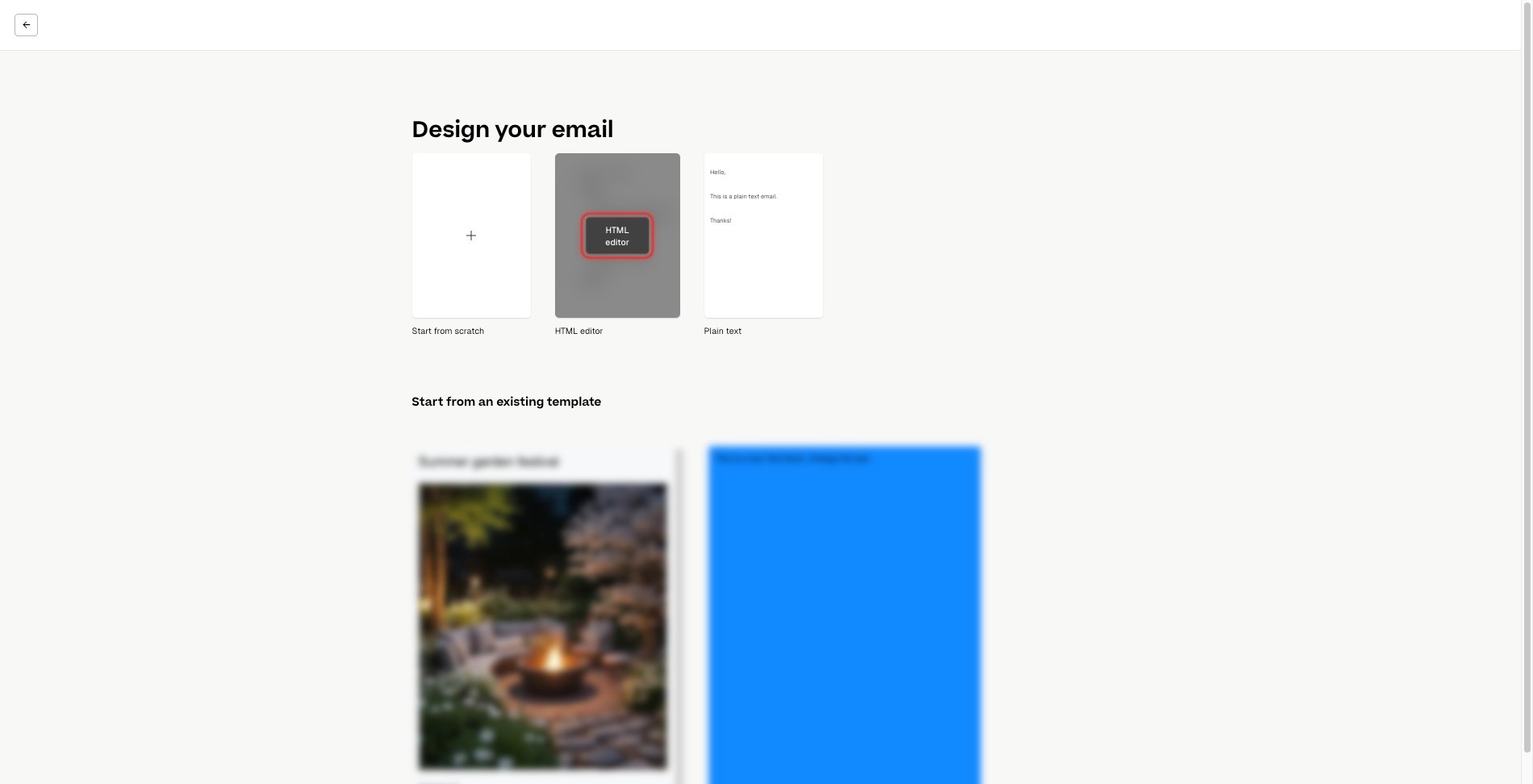
Step 1: Click on “HTML editor” to create a new campaign
Image

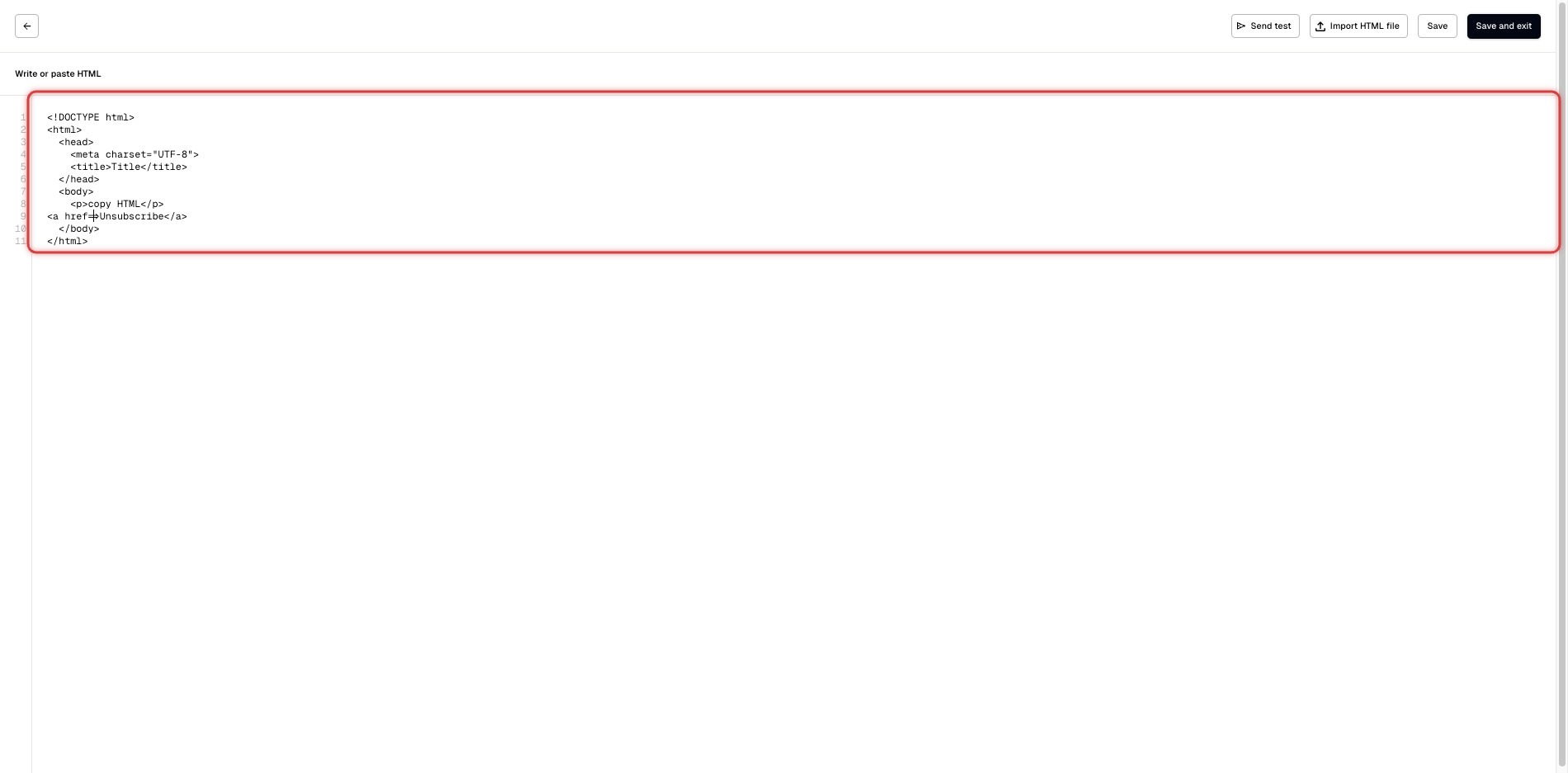
Step 2: Write your future button

The text should look like this: <a href=” “>Unsubscribe</a>
Image

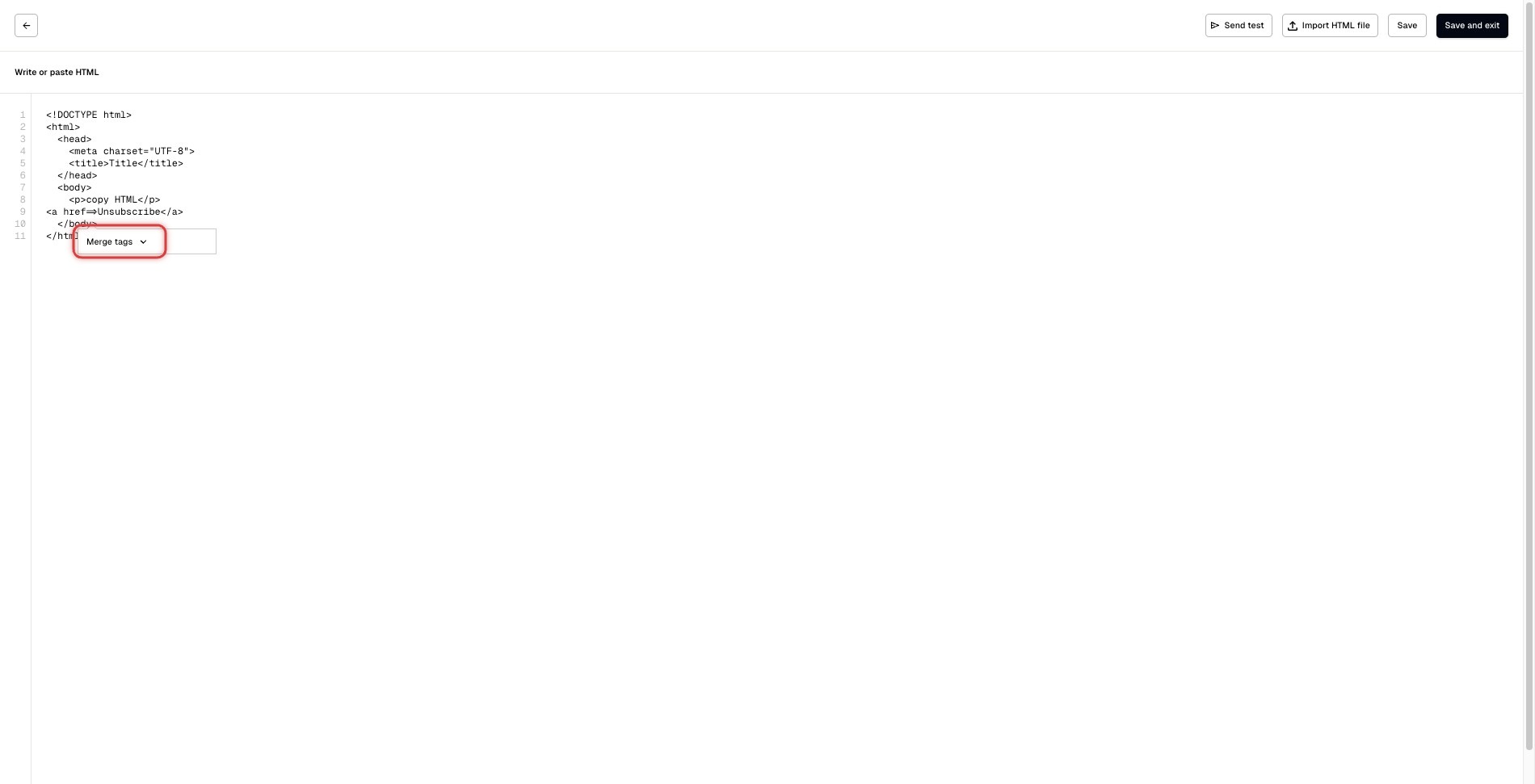
Step 3: Click on the space between quotation marks and click on “Merge tags”
Image

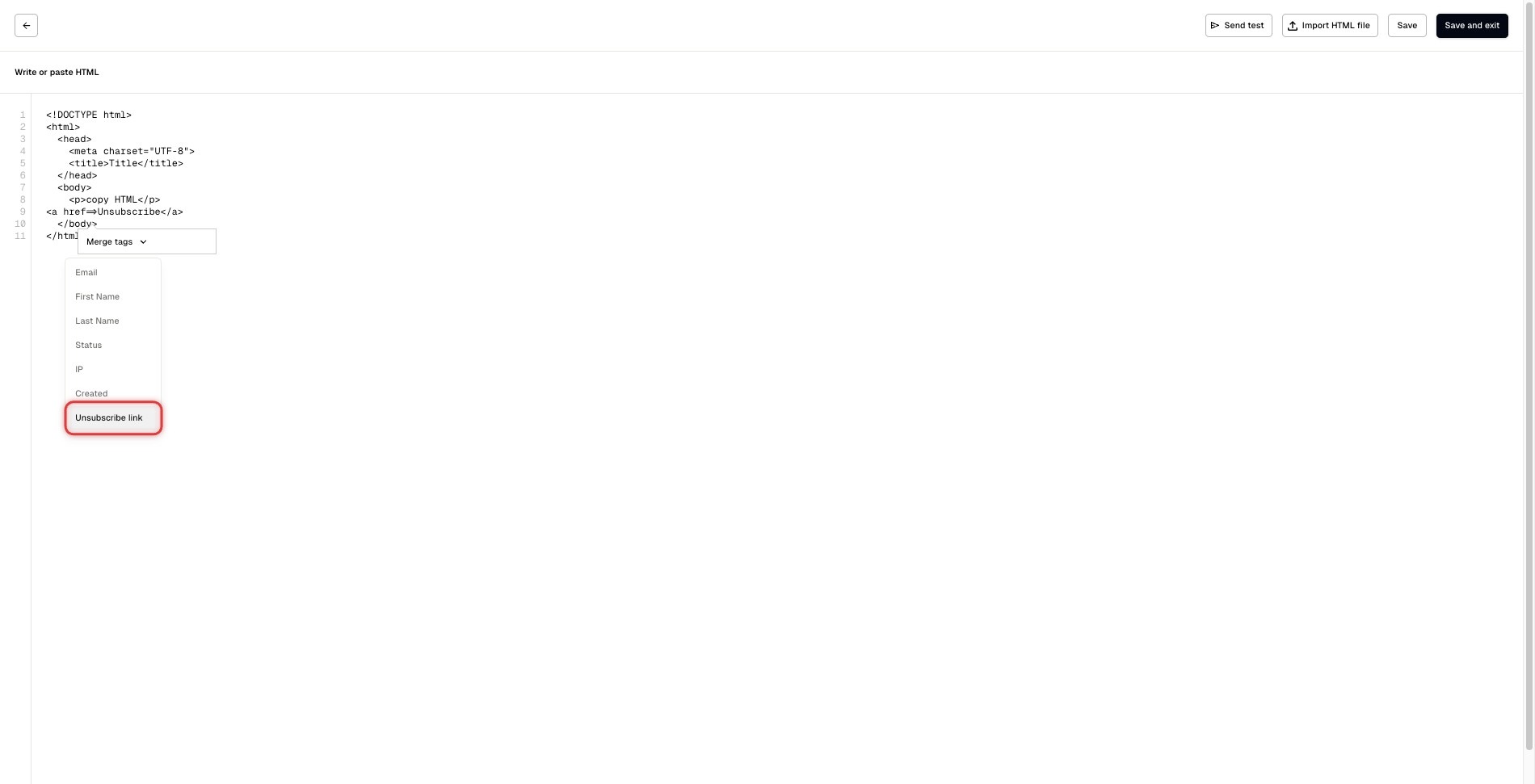
Step 4: Choose “Unsubscribe link” from the dropdown menu
Image

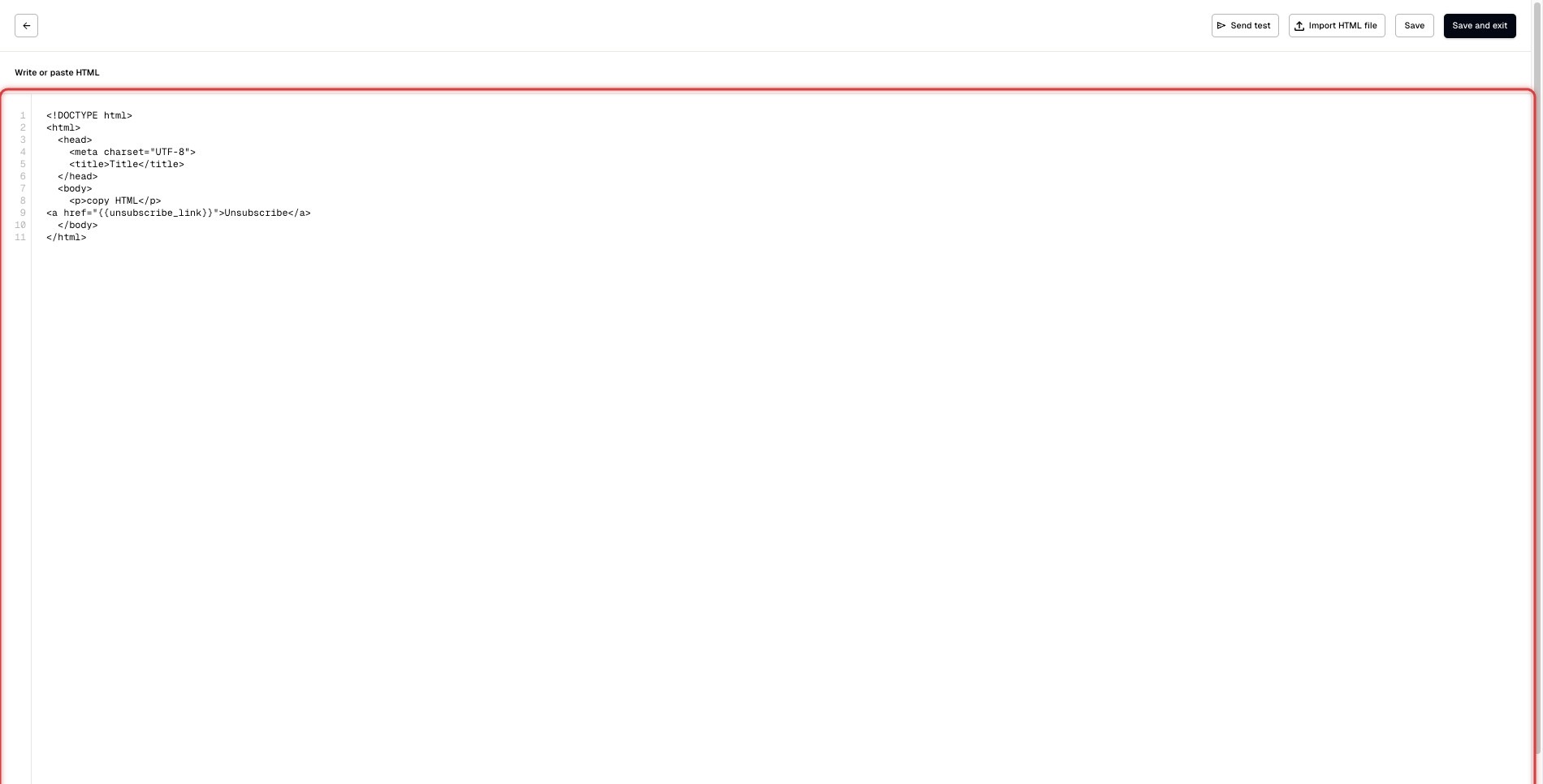
Step 5: All done!

Now your button should look like this: <a href=”{{unsubscribe_link}}”>Unsubscribe</a>
Image

Contact us if your need some help

If you encounter any issues or have questions about adding “unsubscribe” button, please don’t hesitate to contact Inboxroad support for assistance or mail us at contact@inboxroad.com. We’re here to help you every step of the way!


Updated on 19 September 2025

What are your Feelings

  • Happy
  • Normal
  • Sad

Share This Article :

  • Facebook
  • X
  • LinkedIn
  • Pinterest
Table of Contents
  • Follow these easy steps
    • For campaign builder:
      • Step 1: Go to Inboxroad and create a campaign from scratch
    • Step 2: Create a campaign and add “Unsubscribe“ text
      • Step 3: Click on “Merge Tags”
      • Step 4: Click on “Unsubscribe link”
      • Step 5: Click on “{{unsubscribe_link}}” and cut it to your clipboard
      • Step 6: Click on “Unsubscribe” and select the text
      • Step 7: Click on “Link” icon
      • Step 8: Click on “URL” input field
      • Step 9: Paste “{{unsubscribe_link}}“ and click on “Save”
      • Step 10: All done! Now your “Unsubscribe“ button is active and ready to be used
    • For HTML editor:
    • Step 1: Click on “HTML editor” to create a new campaign
  • Step 2: Write your future button
  • Step 3: Click on the space between quotation marks and click on “Merge tags”
    • Step 4: Choose “Unsubscribe link” from the dropdown menu
  • Step 5: All done!
  • Contact us if your need some help
inboxroad
EU GDPR COMPLIANT
CAN SPAM ACT COMPLIANT
Sending services
  • SMTP Relay
  • Email API
  • Dedicated IPs
Email design
  • Email builder
  • Contact lists
  • Templates
  • HTML Editor
User Intelligence
  • Campaign statistics
  • User engagement
  • Personalisation
  • Sending statistics
Inboxroad
  • Pricing
  • API docs
  • About us
  • Blog
  • Customer stories
  • All integrations
  • Book a demo
  • Help Center
  • Contact
Terms of service
© 2025 Inboxroad